
Plan Shipments With Open-Top and Flat-Rack Containers
While you won’t find open-top and flat-rack containers directly in EasyCargo’s list of predefined cargo spaces, EasyCargo makes it easy to simulate both container types using a custom setup. With just a few clicks, you can load cargo that exceeds standard closed container dimensions and visualize the result in 3D.
How can you load open-top and flat-rack containers?
There are two ways to adjust the dimensions to load open-top and flat-rack containers:
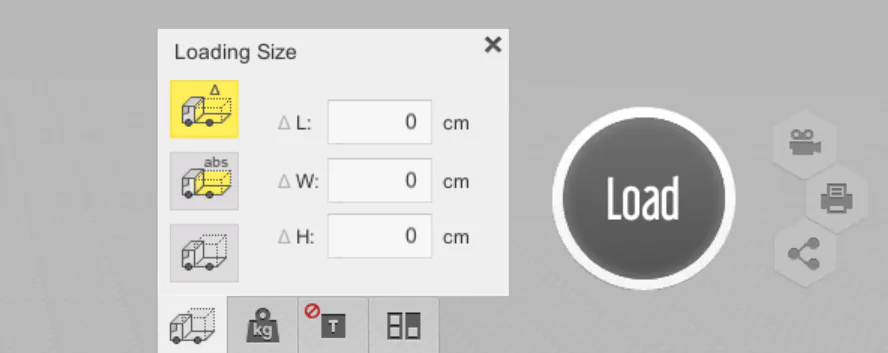
Option 1: Adjust the dimensions in the Loading Calculation Settings panel
First, choose one of the containers available in our software. Then, adjust the cargo loading size in the Loading Calculation Settings panel to the type of open container you need, and that’s it.
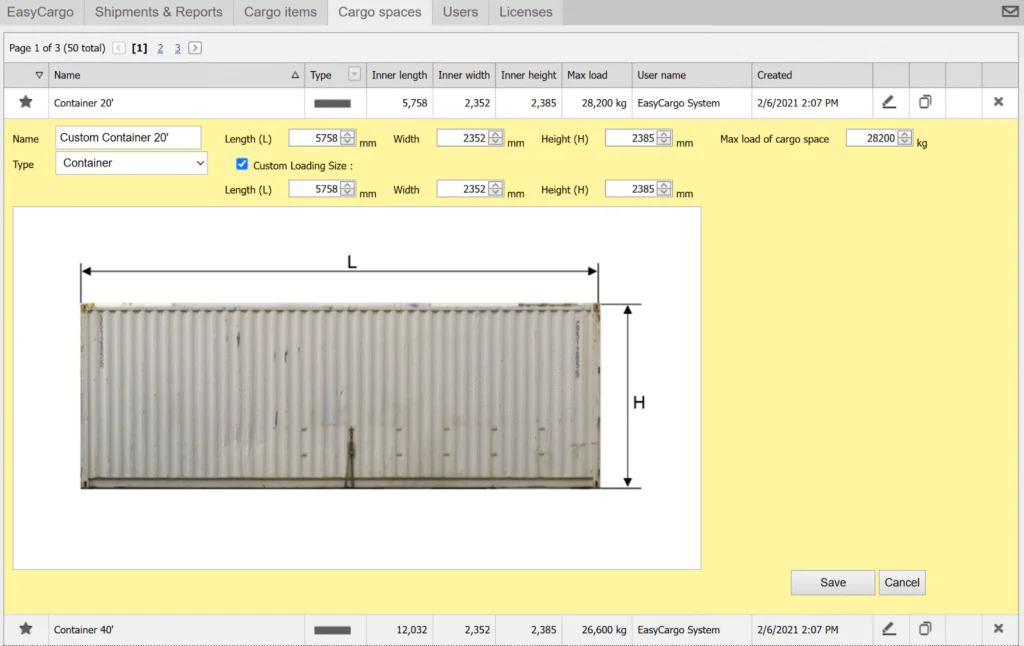
Option 2: Modify the cargo space directly under the Cargo spaces tab
Open the Cargo space tab and choose the container type that you want to adjust. Right next to the Type field, you’ll find the Custom loading size option. When selecting this option, you’ll be able to modify the length, width, and height of the load area for the selected cargo space.
Loading the open-top container
To simulate an open-top container, increase the height of the selected container’s loading space.
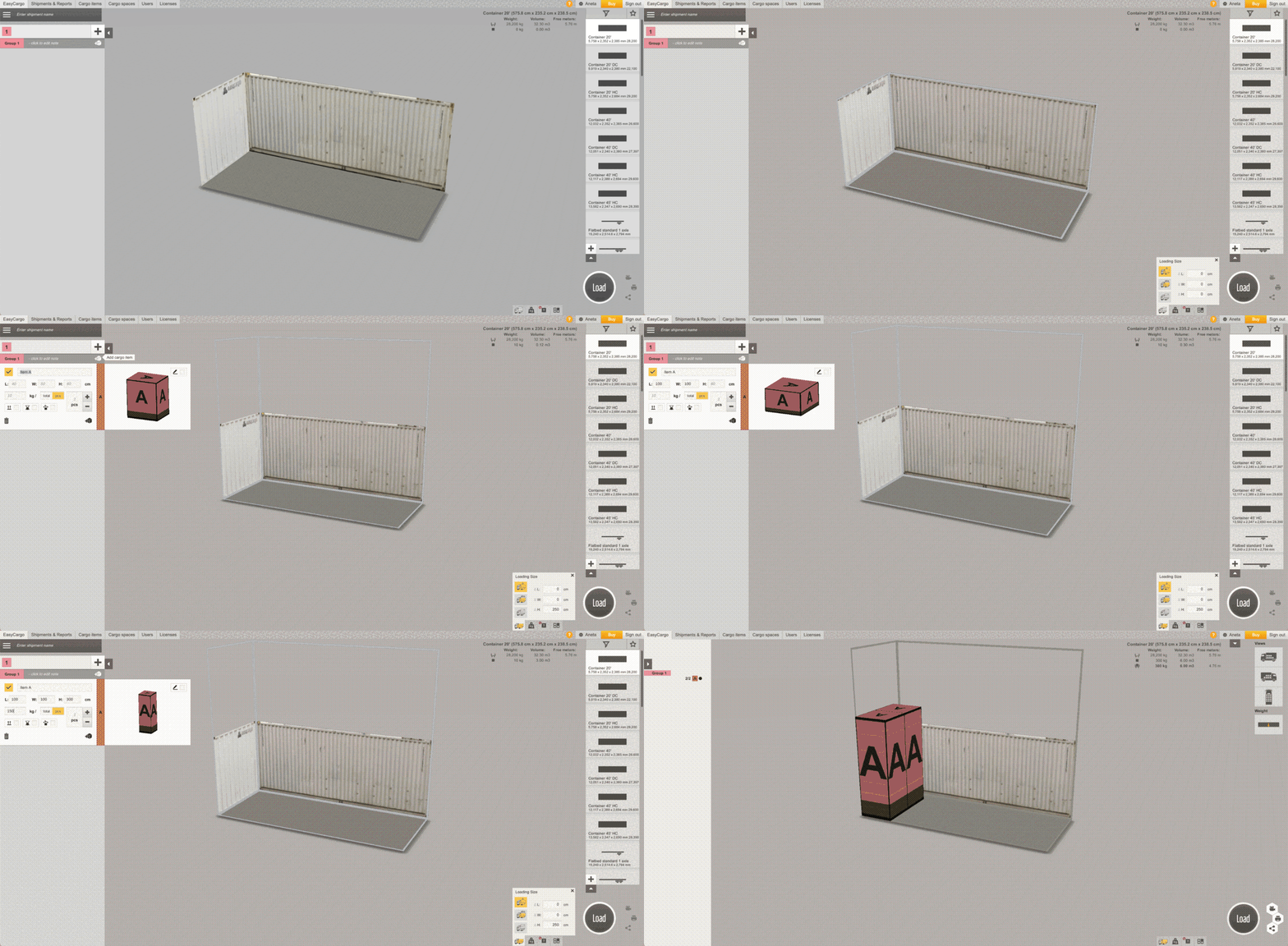
Flat-rack container loading
For flat-rack containers, you’ll need to increase both the height and the width of the loading size to reflect the open sides.
Pro tip: For very heavy or tall loads, consider adjusting the center of gravity to optimize balance.
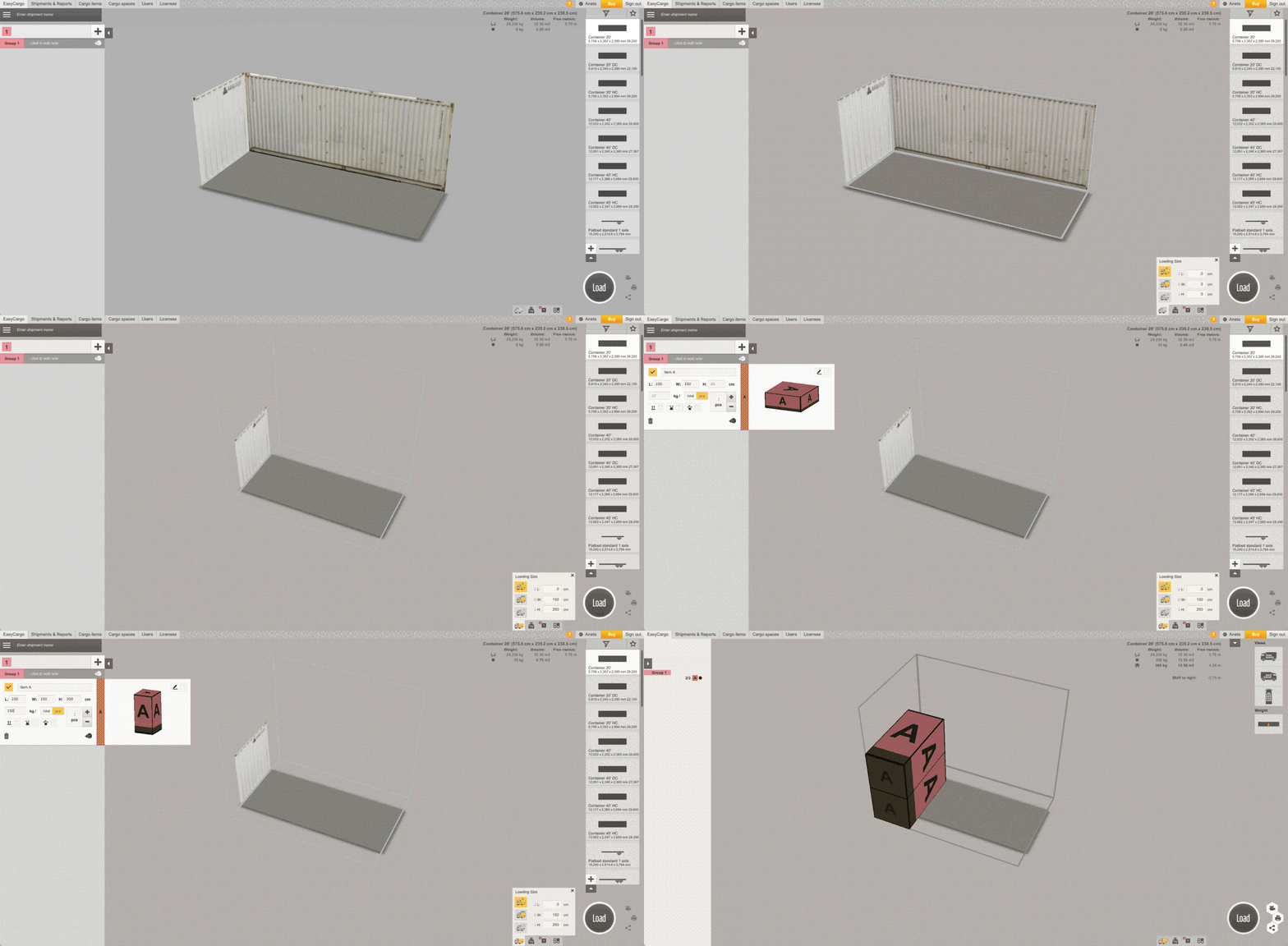
Load and visualize your plan in 3D
Once your cargo space is customized, simply add the items you want to load and press the Load button. Our software will handle the rest — even if your load exceeds standard dimensions.
Thanks to EasyCargo’s interactive 3D visualization, you can clearly see how your oversized items fit into your adjusted container. This preview is available to all users in your organization.
Need help?
Request a demo or start a 10-day free trial and load smarter today!