
Do You Need to Unload Your Cargo Gradually? With Priority Groups, It’s a Piece of Cake!
Picture this: You’ve got one truck, three different delivery stops, and a serious puzzle on your hands. How do you make sure the cargo for the last stop is tucked safely in the back, while the goods for the first stop are right there at the door, ready to go? Or maybe you’re sweating over how to keep those heavy pallets from crushing your client’s fragile boxes?
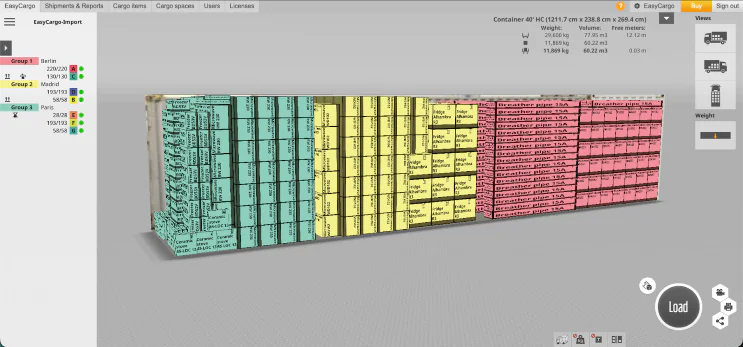
We get it. Doing this math in your head isn’t just a headache; it’s a recipe for disaster.
But hey, good news! That’s exactly why we built Priority Groups. It turns this Tetris nightmare into a walk in the park. Let’s dive in and see how it works.
What Exactly Are Priority Groups?
This feature lets you categorize your items into specific groups, telling EasyCargo exactly in which order they should enter the truck. We do the heavy lifting, ensuring your load plan follows your rules perfectly.
It’s a total game-changer for:
- Multi-stop Deliveries: No more rearranging cargo on the side of the road.
- Separating Goods: Keeping items for “Client A” away from items for “Client B”.
- Load Consolidation/Groupage: Easily combine multiple orders from different clients into one organized load by assigning them to the same priority group.
How to Master Multi-Stop Deliveries with Priority Groups
Step 1: The Golden Rule
Remember this one rule: LIFO (Last In, First Out).
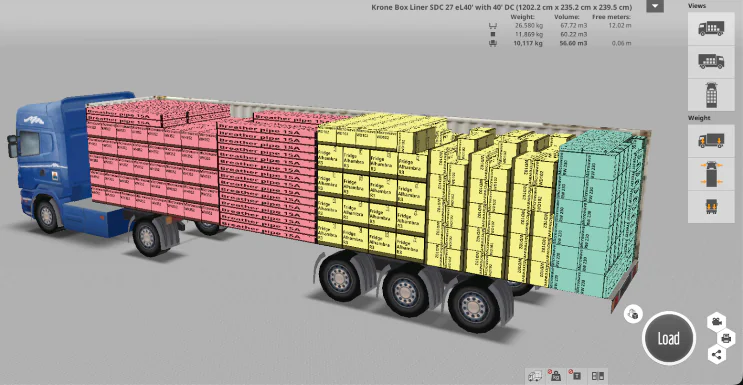
In EasyCargo, the logic is simple: Group 1 goes into the truck FIRST. This means Group 1 will be placed deepest in the cargo space.
The Scenario: You are driving from Paris (1st drop) -> Madrid -> Berlin (Last drop).
- The Setup:
- Group 1 (red): Goods for Berlin (gets loaded first, stays in the back)
- Group 2 (yellow): Goods for Madrid (gets loaded in the middle)
- Group 3 (green): Goods for Paris (gets loaded last, sits right by the door)
Step 2: Create & Assign
Head to your Shipment Input Panel and look for the column showing the number ‘1’ above your items (that represents Group 1)
- Hit that little “+” button to add as many groups as you need (up to 50).
Pro Tip: Give them real names like “Stop 1 – Final Destination” so you don’t get confused later.
- Assigning items is super flexible! Whether you create the item directly within the group, drag and drop an existing one, add one from your Cargo Item Database, or import in bulk from the start using an Excel file, we make it easy to get them assigned correctly.
Step 3: Change your Priority Groups settings as much as you need
Do you want more control over your shipment? Click the Priority Groups Settings button next to the Load button. This is where you tell EasyCargo how strictly to follow the rules:
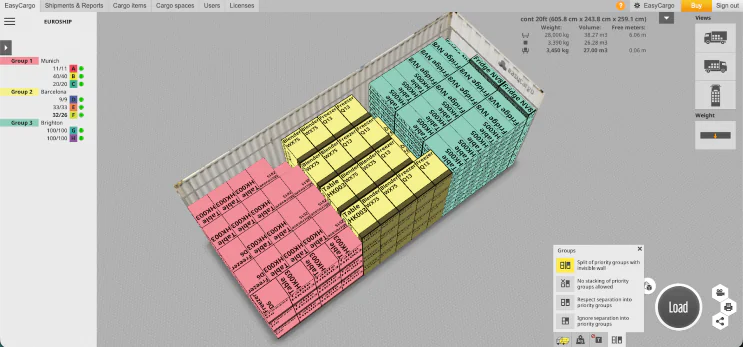
- Respect separation: This is the standard setting. We finish loading Group 1 completely before touching Group 2. Perfect for most multi-stop routes.
- No stacking of priority groups: Do you have fragile stuff in Group 1? Select this. We won’t let Group 2 sit on top of Group 1.
- Split with an invisible wall: Imagine a vertical wall between your groups. It keeps them totally separate, like they are in different rooms. This is essential for separating dangerous goods, maintaining high-security loads, or simply ensuring different clients’ orders never touch.
- Ignore separation: Do you want to know the absolute maximum number of items you can fit into your selected cargo space if you ignore all of your rules? Use this mode! EasyCargo will mix everything up to maximize cargo space utilization, giving you a quick comparison against your prioritized load plan.
Step 4: Load & See the Cargo Sequence
Hit the “Load” button and watch the magic happen.
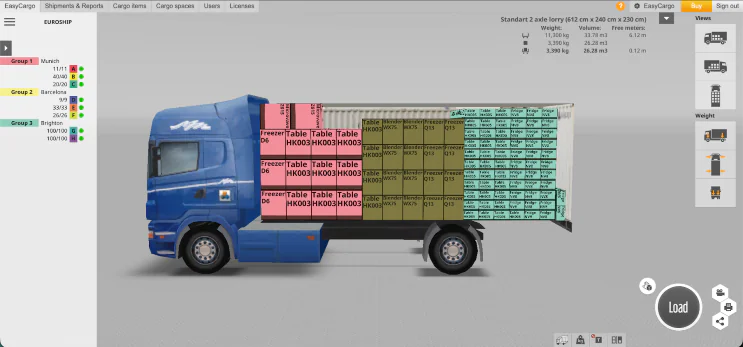
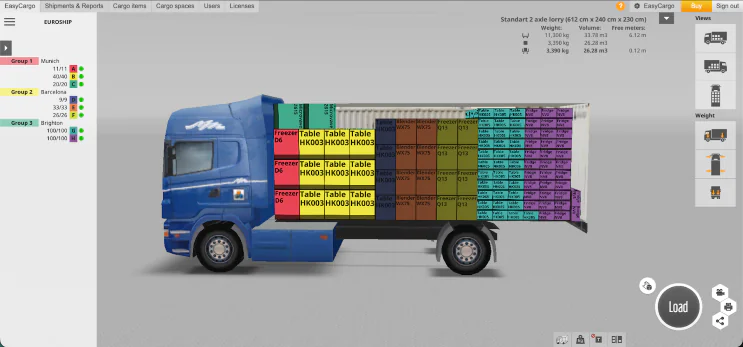
To make your life easier, EasyCargo colors each group differently. To see the groups color-coded, click the group name in the Load Plan Info Panel on the left.
And here’s the result! You can clearly see how the items were placed according to your rules.
Share the Plan
A great plan is useless if the warehouse team doesn’t receive it. Don’t worry, we’ve got your back with several sharing options:
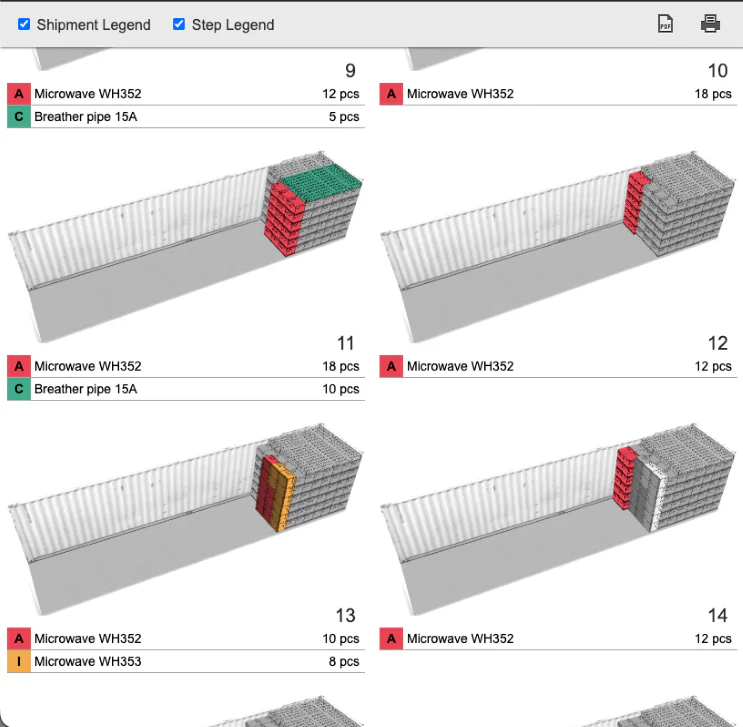
- Print it: Generate a Step-by-Step Print Report. It’s a visual guide that tells the loader: “Step 1: Put these red boxes here.” You may also simply share the PDF file without printing it.
- Share it: Create a Public Link and send it to your driver. They can open the 3D load plan right on their laptop/tablet and rotate it 360° to achieve a clear view of the plan.
- Tablet: For the absolute best viewing experience on the go, tell your team to download the EasyCargo app (available on iOS and Android)! They can view the interactive 3D plan and step-by-step loading guide directly in the app on their tablet.
Are You Ready to Try Priority Groups?
Stop guessing and start mastering professional sequence loading today. Priority Groups simplify complex multi-stop deliveries and help you maximize cargo space optimization and load consolidation instantly. Say “goodbye” to loading errors and say “hello” to smooth sailing!
Are you still unsure if EasyCargo will help with a tricky load? Book a meeting with one of our representatives – we’d love to help you answer this question!
Now that you are ready to see how much time and effort you can save with EasyCargo, you can try EasyCargo for free!